How to Download Your Gmail Data
Last updated: February 11, 2026
Mail Zero analyzes your Gmail metadata from a Google Takeoutexport. Google Takeout is a free, official Google tool that lets you download a copy of your data from any Google service — including Gmail. This guide walks you through the entire process.
What You'll Need
- A Google account with Gmail
- A few minutes to configure the export
- Time to wait for Google to prepare your file (usually a few minutes to a few hours, depending on mailbox size)
Step-by-Step Instructions
Open Google Takeout
Go to takeout.google.com and sign in with the Google account whose Gmail you want to analyze. You'll see a list of all Google products that have exportable data.
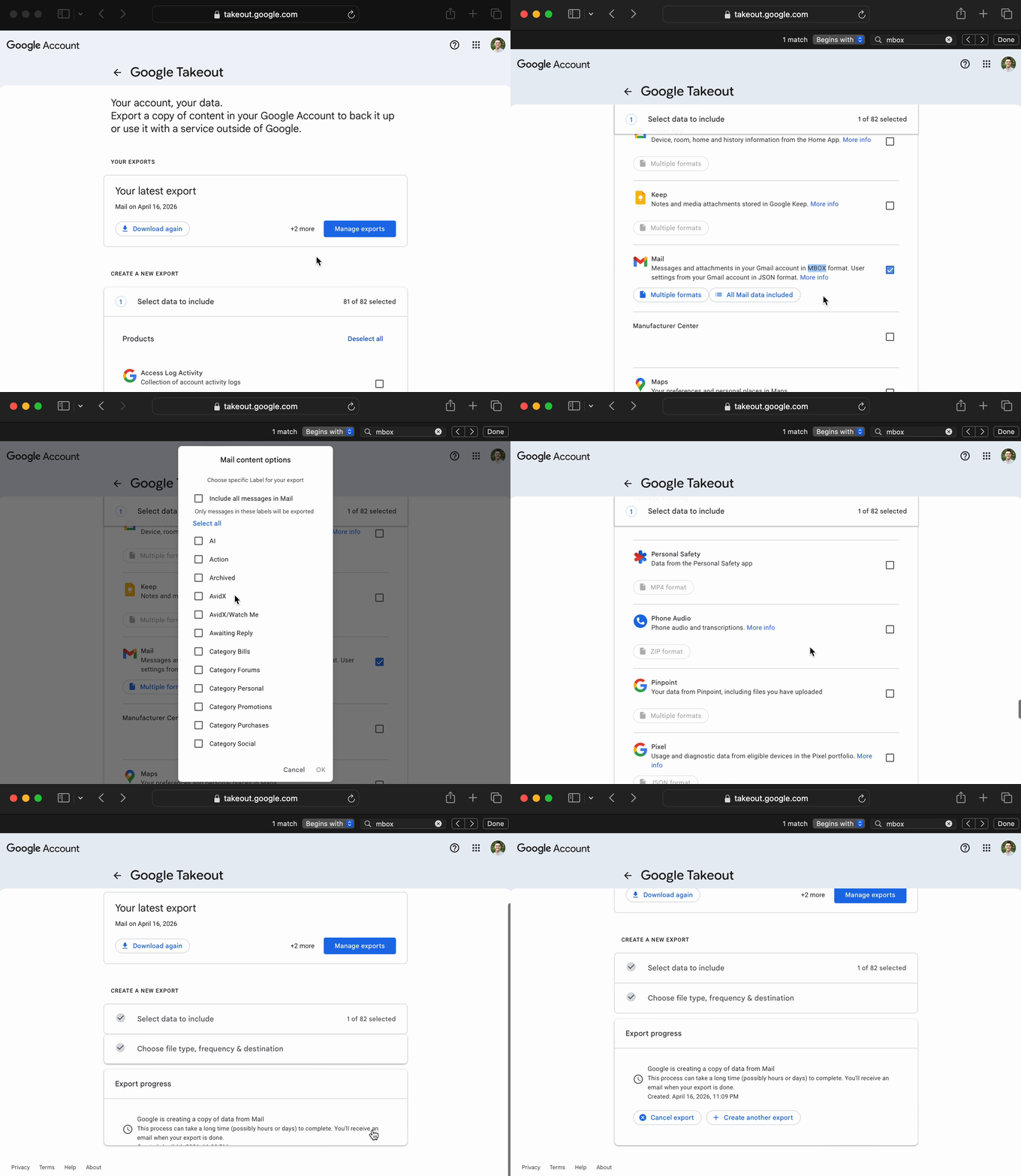
Deselect all, find Mail, then narrow what gets exported
By default, Google selects almost every product. Follow these steps on the main Takeout page:
- Click “Deselect all” at the top of the product list.
- Use find-on-page (Ctrl+F / ⌘F) and search for mbox— not “mail”, which matches too many products. That jumps straight to the Mail row.
- Check Mail only. You should see about 1 of 82 selected.
- Click “All Mail data included” next to Mail to open the label dialog.
- In the dialog, uncheck “Include all messages in Mail”, then uncheck all labels and check only Inbox.
.zip and 500 MB for an extracted .mbox.Walkthrough — “All Mail data included” through Inbox-only labels
Option B — Export all mail
Skip the label dialog changes: leave “Include all messages in Mail” checked if you want full history including Sent, Archived, etc. Be aware this can be 10–20 GB and you should upload the .mboxfile inside the zip — not the zip itself (500 MB upload limit vs 150 MB for zip).
Click “Next step”
Scroll to the bottom of the page and click the “Next step” button. This takes you to the export settings.
Configure your export settings
On the next screen you'll see several options. Here are the recommended settings for Mail Zero:
| Setting | Recommended |
|---|---|
| Delivery method | Send download link via email |
| Frequency | Export once |
| File type | .zip |
| File size | 2 GB (or smaller if your mailbox is small) |
.mbox files up to 500 MB and Takeout .ziparchives up to 150 MB. If your export is larger, Google may split it into multiple files — you can upload any one part, or extract and upload an individual .mbox from the zip.Click “Create export”
Google will begin preparing your export. This can take anywhere from a few minutes to several hoursdepending on the size of your mailbox. You'll receive an email when it's ready.
You can safely close the page — Google will keep working in the background.
Download your export
When your export is ready, you'll get an email from Google with the subject “Your Google data is ready to download”. Click the link in the email, sign in if prompted, and download the .zip file to your computer.
Upload to Mail Zero
Head back to the Mail Zero home page and drag & drop your downloaded .zip file onto the upload area (or click to browse). Mail Zero will extract the email metadata and show you your analytics in seconds.
Frequently Asked Questions
What is an .mbox file?
An .mbox file is the standard format Gmail uses to store email data. When you download a Google Takeout export of your Gmail, the .zip file contains one or more .mbox files inside it. You can upload either the .zip directly or extract and upload individual .mbox files.
My export is 10+ GB. What do I do?
Google's default export includes all mail — Spam, Trash, Sent, Archived, everything. For Mail Zero, you only need your Inbox. Go back to Google Takeout, use find-on-page for mbox to jump to Mail, then click “All Mail data included”, then in the label dialog uncheck “Include all messages in Mail” and select only Inbox. Your export will be much smaller. Alternatively, open the downloaded zip on your computer, find the .mbox file inside, and upload that directly (up to 500 MB).
My export file is larger than 500 MB. What do I do?
If your mailbox is large, Google may split the export into multiple files (e.g., takeout-part1.zip, takeout-part2.zip). You can upload any individual part to Mail Zero. Alternatively, go back to Google Takeout and export only specific labels (like Inbox) to get a smaller file.
My upload fails on the live site with a vague or technical error
Mail Zero uses streaming parsing for .mboxfiles, so memory shouldn't be an issue for most uploads. For .zipfiles, the archive must fit in memory — uploads are capped at 150MB for .zip and 500MB for .mbox. If your export is larger, go back to Google Takeout and export only specific labels (like Inbox) to get a smaller file.
How long does the export take?
It depends on the size of your mailbox. Small mailboxes (a few thousand emails) usually finish within minutes. Larger mailboxes (tens of thousands of emails) can take a few hours. Google will email you when it's ready.
Is this safe? What data does Mail Zero see?
Mail Zero only reads email metadata: the sender address, the date, and Gmail labels. We do not read email bodies, subjects, or attachments. Your file is processed in server memory and is never stored. For more details, see our Security & Data Handling page.
Can I use this with non-Gmail email?
Yes! If you have an .mbox file from any email client or provider (Thunderbird, Apple Mail, etc.), you can upload it directly. The Google Takeout steps above are specific to Gmail, but the .mbox format is universal.
My export download link expired. What do I do?
Google Takeout download links expire after about a week. If yours has expired, simply go back to takeout.google.com and create a new export. The process is quick to set up.
Ready to see who's flooding your inbox?
Upload your Takeout file →